
When creating reports or visuals for booked quotes in the FL3XX BRIGHT dataset, understanding the booked, booking status, and booking type fields is key.
Here's how to interpret and filter the data:
-
Total Bookings: The dataset contains the full list of bookings, categorized by
booking status(e.g., OK, Cancelled, Pending) andbooking type(e.g., Booked, Quoted). -
Booked Field (0 or 1): The
bookedfield indicates a booking is considered "booked" (value = 1) if itstypeis 'Booked' and itsstatusis not 'Cancelled'. This applies to a subset of bookings. Else the booking is considered as "not booked" (value = 0).
Booking Status Breakdown:
- 'OK': The booking is confirmed and active, all necessary approvals have been obtained, and the booking is ready to proceed with flight operations.
- 'Cancelled': The booking has been cancelled by either the client or operator. Can be cancelled for various reasons (client request, weather, duty time violations, etc.).
- 'Declined': the booking request was declined by the operator/owner. The request was not accepted or approved - meaning OK.
- 'Dropped': A quote that was dropped or abandoned. Typically applies to quote-type bookings that were not pursued
- 'Pending': The booking is in a pending state, waiting for some action. Could be waiting for quotes, approvals, confirmations, or other workflow steps. Default status for new bookings and quotes.
- 'Failed': The booking failed due to some technical or operational issue. Could be due to system failures, payment issues, or other problem.
- 'Closed': The booking has been completed successfully. All flights have been flown and the booking is finished.
- 'Deleted': The booking has been deleted from the system. Considered "effectively cancelled" in the system.
Booking Type Breakdown:
- 'Booked': A firm, confirmed booking that has been accepted and is ready for flight operations. The booking has moved from quote/option stage to actual booking status.
- 'Option': Time-Limited Hold. Has a
validUntildate that automatically expires. - 'Quoted': An initial price proposal sent to the client for consideration. Workflow states include: INIT (just created), QUOTE_SENT (sent to client). Can be converted to an option (with time limit) or directly to a booking.
Note: the Booked type step creates tickets for all passengers automatically, generates booking numbers and trip numbers and sets booking date when confirmed.
Booked but Not Cancelled:
Of the 'Booked' type bookings, those with booked = 1 exclude 'Cancelled' statuses. Note that this includes OK, Closed or Pending booking status.
First Quote Date
First Quote Date records the moment a user clicks the quote button inside FL3XX. A request that is declined before a quote is ever built will have no First Quote Date. This is expected: the record never reached the quoting step, so there's nothing to timestamp. Don't use First Quote Date as the anchor for counting total requests or quotes — use Booking Type and Booking Status instead.
Last Workflow State
Last Workflow State tracks a booking's progress through workflow milestones — for example, whether a quote or booking document has been sent, signed, or invoiced. It updates as the record moves forward, so a booking that starts "sent" and later becomes "invoiced" will only show the latest value.
Use this field when the question is specifically about workflow progress ("what stage is this booking's paperwork at?"). Avoid using it as a general filter across a whole dashboard — because it only reflects the current milestone, filtering broadly on it can silently exclude records at earlier or later stages that should still be included in the count.
Request Date, Created Date, and Booking Date
Three related date fields, each with a distinct purpose:
- Request Date — when the request was first received in FL3XX. Reliable for the large majority of records.
- Created Date / Creation Date Time — timestamp the record was created in the system. Populated on every record.
- Booking Date — the date a booking was actually confirmed. Preferred over
Booking Send Date(the date a booking document was sent) for trend and monthly reporting.
Pricing and Tax Fields
- "Tax": Captures general tax data, complementing region-specific taxes.
- Value Added Tax (VAT) and Federal Excise Tax (FET) Handling: Displays VAT for European and FET for US-American operators, ensuring compliance and accurate regional reporting.
Previously existing fields such as "VAT/FET", "Quote Net Price", "Quote Gross Price", "Net Price", and "Gross Price" are marked with a "(deprecated)" suffix.
Migration to the new fields is recommended!
- New Financial Fields: Aligned directly with FE columns ("Total" for quotes, "Actual/Current" for booked, and "Sold" for finalized bookings):
- Net Price (Total)
Net price from "Total" (quote) or "Actual/Current" (booked). - TAX (Total)
General tax from "Total" (quote) or "Actual/Current" (booked). - VAT (Total)
VAT from "Total" (quote) or "Actual/Current" (booked). - FET (Total)
FET from "Total" (quote) or "Actual/Current" (booked). - Gross Price (Total)
Gross price from "Total" (quote) or "Actual/Current" (booked). - Net Price (Sold)
Net price from "Sold" (booked only). - TAX (Sold)
General tax from "Sold" (booked only). - VAT (Sold)
VAT from "Sold" (booked only). - FET (Sold)
FET from "Sold" (booked only). - Gross Price (Sold)
Gross price from "Sold" (booked only).
- Net Price (Total)
The new financial fields use a more robust backend logic than the old, deprecated ones, providing a complete inventory for Total vs. Sold contexts.
Creating Visuals:
-
To show only confirmed booked quotes, filter for
booking status = OKANDbooking type = Booked. -
If 'Pending' or 'Dropped' bookings are valid in your context (e.g., pending confirmation or dropped after booking), include them by filtering
booking type = BookedANDbooked = 1. -
Exclude 'Cancelled' statuses to focus on active or potential bookings.
Notes: The 'Dropped' and 'Pending' statuses within booked = 1 may need clarification with your data team, as they might represent valid booking states or errors. The booked field simplifies this logic but may not fully align with all business needs.
How to Build a Conversion Rate Visual in BRIGHT
Summary: A step-by-step guide to building a quote-to-booking funnel and conversion rate in BRIGHT, using Booking Type, Booking Status, and calculated fields.
Before you start
Build in this order: raw data table first, then calculated fields, then charts. Validating the numbers in a simple table before wrapping them in a visual makes mistakes much easier to catch.
- Create a table visual with
Booking ID,Booking Type,Booking Status,Request Date, andCreated Dateas columns. Use this to confirm the data looks the way you expect before building anything on top of it.
Build the funnel stages
Each stage should be its own calculated field, so the logic is defined once and reused across every visual on the dashboard.
Requests Received
distinct_count({Booking ID})
Every record that entered FL3XX, filtered by Request Date (or Created Date for integration-sourced records) for the period being reported. This is the true top of the funnel — it includes requests that were later declined.
All Quotes Sent
sumIf(1, {Booking Type} = 'Quoted' OR {Booking Type} = 'Booked')
Everything that reached the quoting stage, whether or not it later converted. A converted record's Booking Type becomes "Booked," so it must be included here as well as "Quoted" — otherwise the count shrinks every time a quote converts.
Bookings Confirmed
sumIf(1, {Booking Type} = 'Booked' AND {Booking Status} <> 'Cancelled')
Everything that converted and is still standing. Whether to also exclude Declined or Dropped statuses depends on how your business defines "confirmed" — decide this before finalizing the field.
Conversion Rate
{Bookings Confirmed} / {All Quotes Sent}
Format as a percentage.
Add a monthly trend
Add Request Date (or First Quote Date, depending on the stage being trended) to the X axis of a Clustered bar combo chart, set aggregation to Month. Keep all three funnel fields on the same date field so they stay comparable across the same time axis. Start with a single month before extending to a full year.
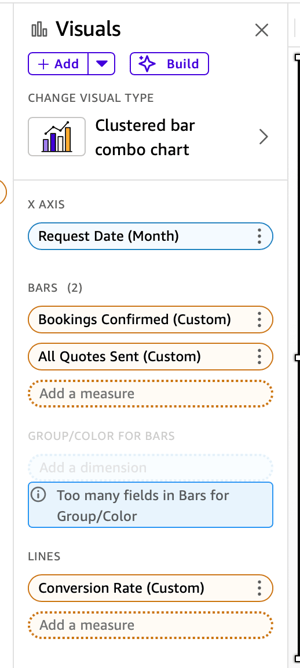
Field wells
- X axis:
Request Date, set aggregation to Month (click the field in the well → Aggregate → Month) — this is what collapses your daily/raw dates into the 12 monthly rows you've been working with. - Bars: drag in both count measures —
All Quotes SentBookings Confirmed
- Lines: drag in
Conversion Rate.
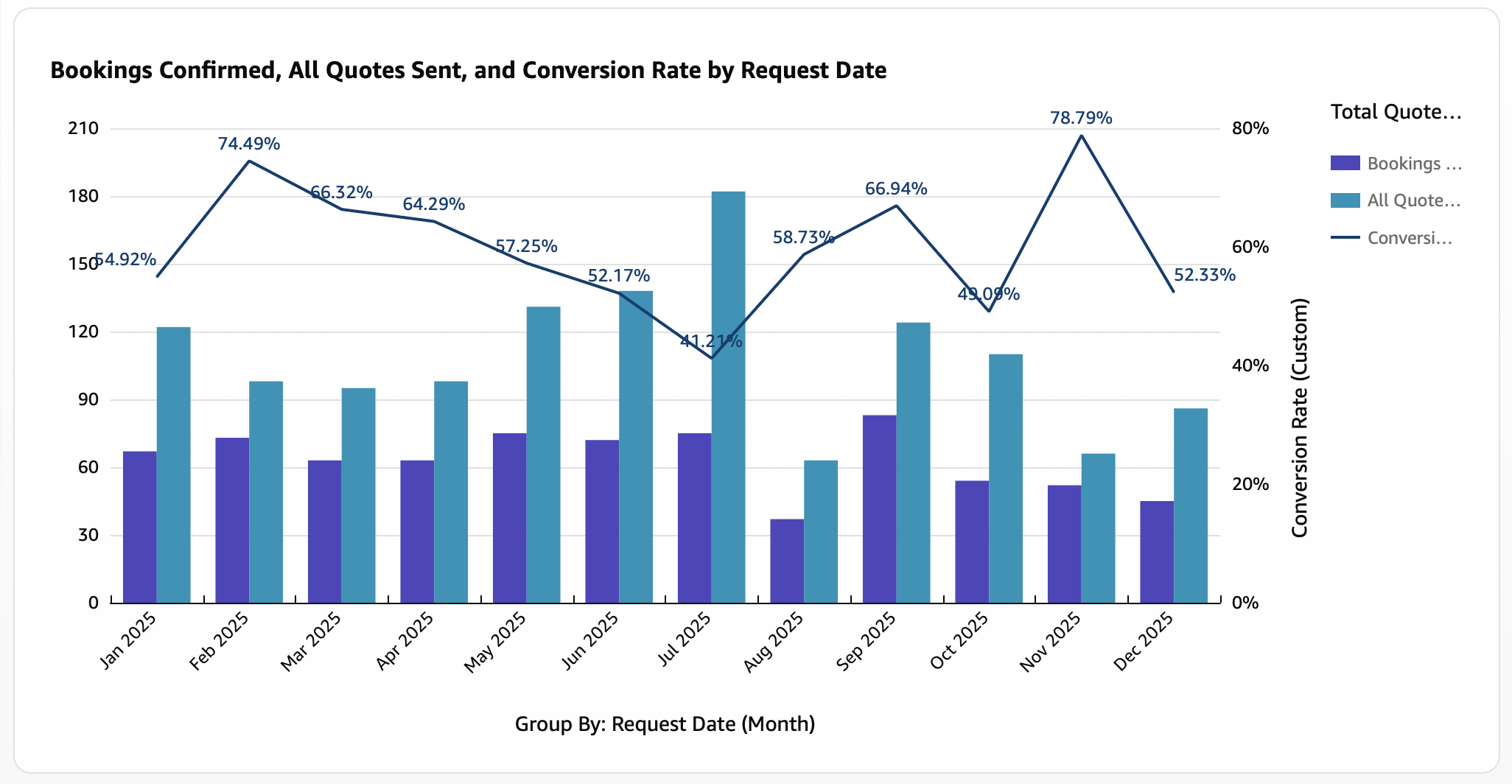
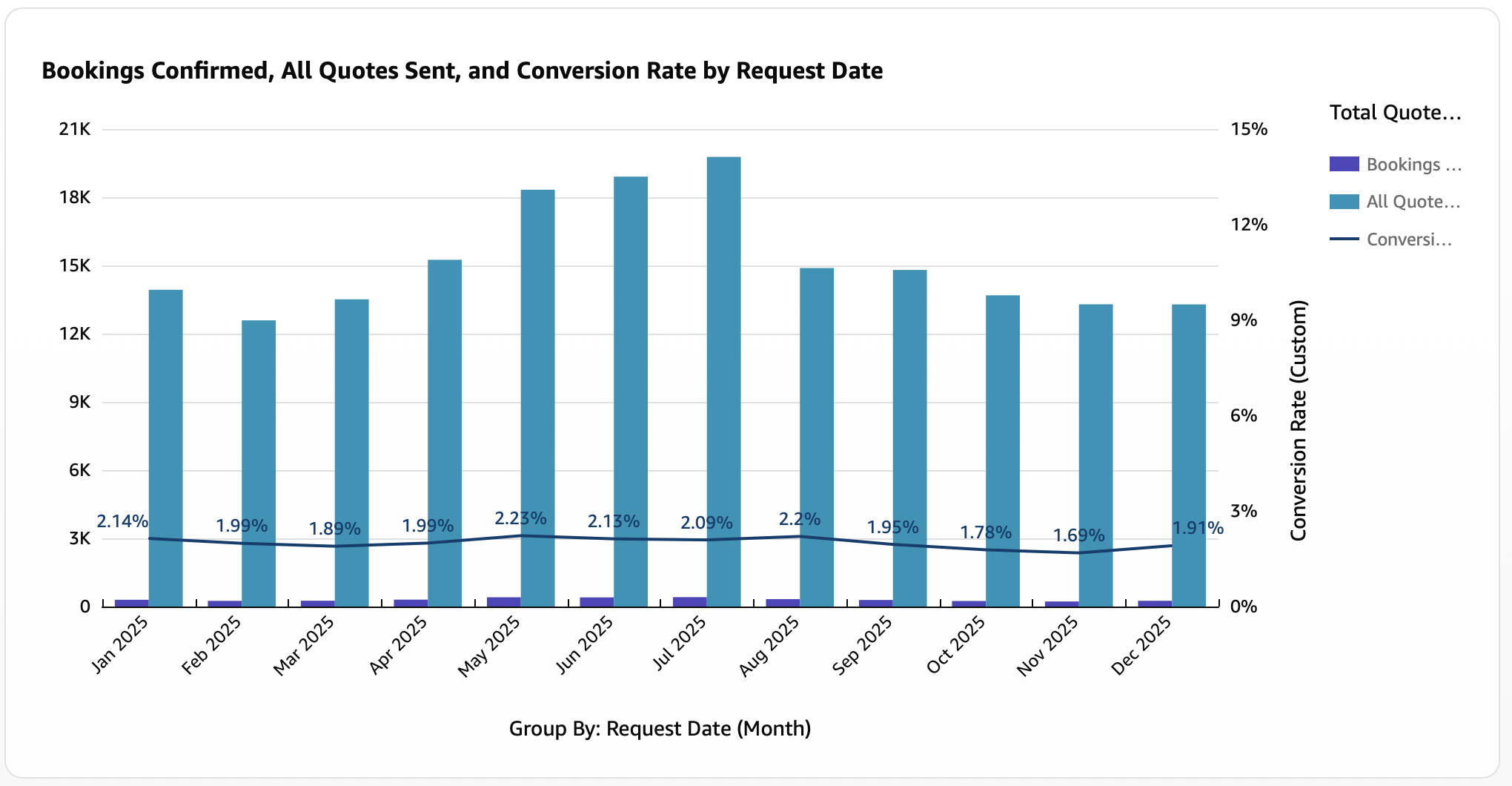
Things to check before trusting the numbers
- Quoted totals that look too high — usually means the filter is catching records at the moment they're created, before a quote was ever sent. Narrow to
Booking Type= Quoted or Booked only. - A wall of null values on
Last Workflow StateorFirst Quote Date— usually means the record never reached that stage (e.g. declined before quoting), not missing data. CheckBooking Statusto confirm. - Small mismatches vs. other reports — often a time zone difference between a local-time and UTC-time date field, shifting a handful of records into an adjacent day or month.
- A booking that looks confirmed but isn't —
Booking Type= Booked andBooking Status= Cancelled can occur together (the booking was cancelled after being confirmed). IncludeBooking Statusin your "confirmed" definition if this distinction matters.