
2. Marking a Flight as Handled
3. Manually Marking a Flight as Handled
5. Revised Flights and New Messages
6. Quick Filters and the Dispatch Badge
1. Identifying New Flights
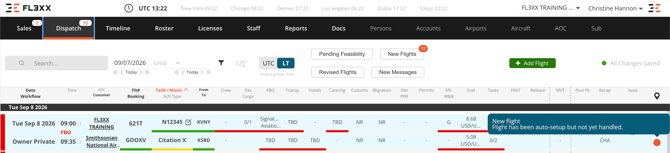
Every flight in Dispatch is either "handled" - reviewed by a dispatcher - or still waiting on review. How a flight shows this depends on how it was set up:
- Auto Setup flights display an orange jelly icon on the flight strip until the flight is handled.
- Manually set up flights display the Setup flag until Setup is completed - completing Setup is what marks these flights as handled.
A flight only starts being tracked once it moves from Quote to Booked - changes made while it is still a quote do not affect its status once it is booked.
2. Marking a Flight as Handled
A flight becomes handled the first time a user makes a saved, qualifying change to it. This includes actions such as:
- Assigning or updating crew, FBO/handling, transport, hotel, or catering
- Updating flight plan, W&B, fuel, customs, or permit details
- Adding or updating passengers
- Sending a request that also updates a status on the flight (e.g. handling, fuel, transport)
The following do not mark a flight as handled:
- Copying crew, handler, or fuel details from one flight to another
- Post-Flight and Movement (MVT) panel entries, including ETD
- Sending a customer update or flight schedule with no status change
3. Manually Marking a Flight as Handled
You can mark a flight as handled directly, without making any other change:
- Click the orange jelly icon on the flight strip.
- Confirm in the prompt that you have reviewed the flight.
The jelly disappears and the flight is removed from the New Flights filter.
4. Handled Status Rules
- Handled status is permanent - it cannot be reset by a later revision, passenger change, or any other event.
- Handled status applies per flight leg. There is no bulk action to mark a full booking as handled.
- A flight that departs or is cancelled while still unhandled is automatically cleared from the New Flights filter, even if it was never reviewed or never set up.
5. Revised Flights and New Messages
Alongside New Flights, two other filters help you track flights that need attention:
- Revised Flights - flights with a change to passengers, crew, airport, or flight date/time since they were last reviewed. This applies regardless of whether the change came from a user, a mobile app, or an integration.
- New Messages - flights with at least one unread inbound email. The count reflects the number of flights with unread messages, not the number of unread messages.
6. Quick Filters and the Dispatch Badge
Four quick filter buttons are available at the top of the Dispatch flight list:
-
Pending Feasibility,
-
New Flights,
-
Revised Flights, and
-
New Messages.

- Filter counts follow the date range and other filters currently applied in Dispatch. The search box does not affect these counts.
- The Dispatch menu badge shows a combined total of New Flights, Revised Flights, and New Messages, calculated from today onward - independent of the date filter applied on the Dispatch page.
7. Benefits
- Visibility: Instantly identify which flights still need review, regardless of setup method.
- Low Risk of Missed Bookings: Auto Setup flights do not blend in with flights that have already been worked.
- Reliable Audit Trail: Every handled transition is logged with the user and timestamp, so you always know who reviewed a flight and when.