
Benefits of Using Tags
- Better Organization: Group quotes by type for easy access.
- Quick Identification: Spot key quotes at a glance with colors.
- Smooth Workflow: Changes sync across mobile and web.
Adding Tags to Quotes
- Open a quote in the app.
- Tap the "Tags" field under "Account."
- A list of tags appears in a bottom sheet.
- Select one or more tags by tapping (checkmark shows).
- Tap "Done" or drag down to save and close.
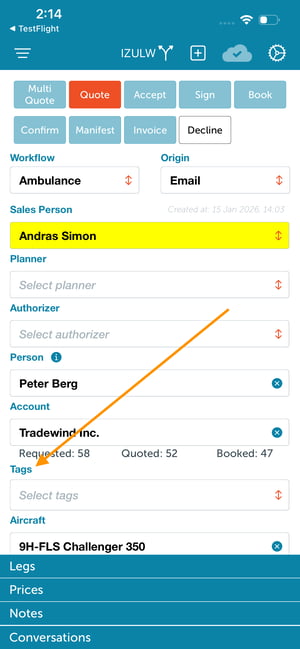

To remove a tag:
- In the quote details, tap the "X" on a tag chip.

Viewing Tags
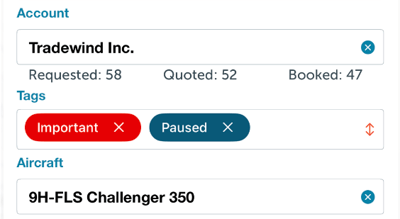
- Tags show as colored chips in quote details.
Automatic Empty Leg Tags
If enabled in Settings > Integrations > Avinode ("Create a tag on Empty Legs"):
- Quotes from Avinode with price = 0 get an "Empty Leg" tag automatically.
- It uses the first available color from your tag setup.
This tag syncs like others but is added by the system.
Syncing with the Web App
- Tags update in real-time across mobile and web.
- Changes in mobile reflect in web, and vice versa.
- Sort order follows web config: most important first.