
We’re working tirelessly to squash every bug and fine-tune our mobile apps. But even the best apps and machines occasionally encounter hiccups. That’s where you come in—your support in spotting, tracking, and helping us eliminate these pesky bugs is invaluable. Together, we’ll keep things running smoothly!
The FL3XX Owner app offers an enhanced bug reporting feature for Owner users, making it easier to report issues with additional context, including screenshots, videos, and issue importance. Follow this guide to streamline the bug-reporting process and ensure your feedback reaches the development team effectively.
Bug Reporting Features:
- Attach Screenshots and Videos: Attach screenshots, videos, or other files. Each file must be ≤20 MB. The total size of all attachments together should stay under 18 MB to ensure the report reaches our team successfully (email delivery adds some overhead).
- Specify Issue Importance: Select the severity of the issue (e.g., P1, P2) to help prioritize fixes.
- User-Friendly Interface: A dynamic slide-up panel makes the reporting process simple and intuitive.
How to Report a Bug:
- Access the Bug Reporting Feature
- Go to Settings > Report an Issue.
- A slide-up panel will appear.
- Select a Category
- Choose the category of the issue (e.g., P1, P2, etc.)
- The right arrow will appear only after selecting a category.
- Please be aware that if you click on "Close" at any point during the process, the window will close and your report will not be submitted.
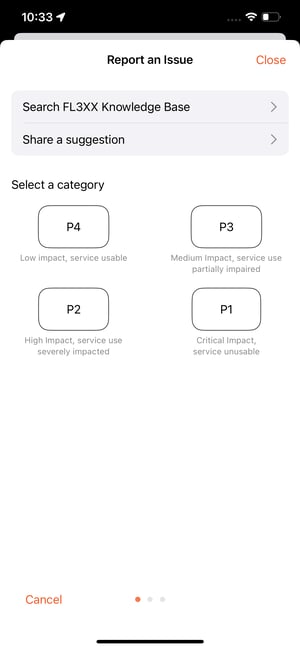
- Fill in the Title and Description
- Title: Maximum 150 characters.
- Description: Maximum 1,000 characters. A minimum of 3 characters is required for each field to proceed.
- Tap "return" or swipe left to continue.
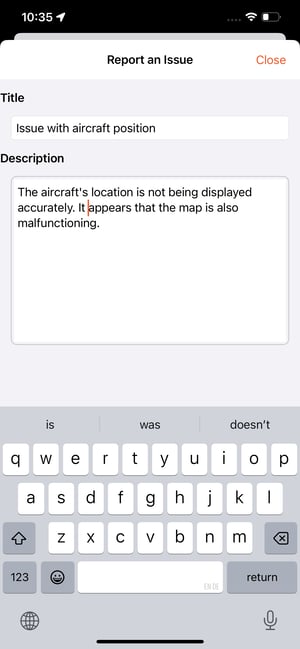
- Upload Media (Optional)
- Tap Upload Files and choose:
- Choose From Gallery
- Upload File
- Cancel
- Attach files such as screenshots or videos (up to 20 MB total).
- Tip: The app checks each file individually (max 20 MB per file). Before sending, make sure the total size of all files is below 18 MB to avoid delivery issues. You can remove or replace large files if needed.
- Preview files (for non-video files) or delete them by pressing the trash bin icon.
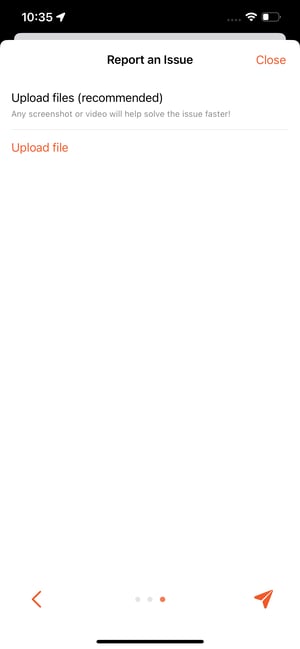
- Tap Upload Files and choose:
- Submit the Report
- After filling in all the required fields, click on the send icon resembling a paper plane to submit your report.

- A confirmation animation will appear, similar to the "Request Sent" animation.
-
If you don't see a ticket created shortly after, check your total attachment size—it may have been too large.
- After filling in all the required fields, click on the send icon resembling a paper plane to submit your report.
-
- Press Finish to return to the home screen.
Behind the Scenes
- Automatic Logs: A log file is attached automatically to help the support team diagnose the issue. This file is not visible to users.
- Video Files: While video files are supported, they cannot be previewed in the app to simplify the interface.
Important Notes
- The maximum file size for attachments is 20 MB.
- The right arrow for navigation appears only after selecting a category and completing the title and description.
- File names are displayed by default, ensuring clarity for attached media.
- Search FL3XX Knowledge Base: Opens the Knowledge Base in your default browser.
- Share a Suggestion: Redirect to the Upvoty suggestions portal.
FAQs:
What is the file size limit?
Each individual file must be 20 MB or smaller (the app blocks larger ones during upload). For best results, keep the combined total of all attachments under 18 MB. Larger totals can prevent the report from being delivered (you may see no confirmation ticket).
Why did my report not arrive even though files were attached?
If the total attachments exceed ~20 MB (including automatic logs and formatting), the email may get rejected by our system. Reduce file sizes, remove some attachments, or compress them, then try again. We recommend staying below 18 MB total for reliability.
Why can’t I preview video files?
Video previews are not supported to keep the interface lightweight. You can still attach and submit videos without issue.
Can I edit my report after submitting it?
No, once submitted, the report cannot be edited. Ensure all details are accurate before sending.