
Introduction
The FL3XX Owner App now includes a comprehensive Aircraft Calendar view in the Schedule tab, allowing aircraft owners to easily visualize aircraft availability, locations, and scheduled activities on iOS devices (with Android support coming soon). This feature provides a monthly calendar interface inspired by native iOS and Android calendars, displaying flights and key tasks for effective planning.
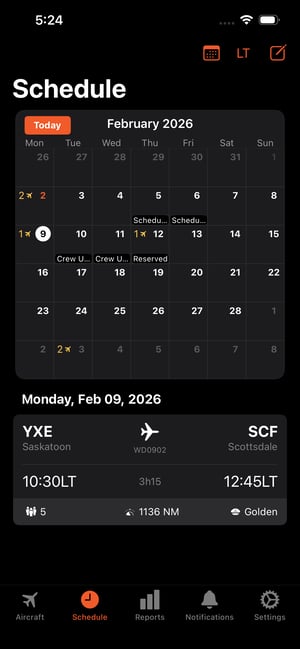
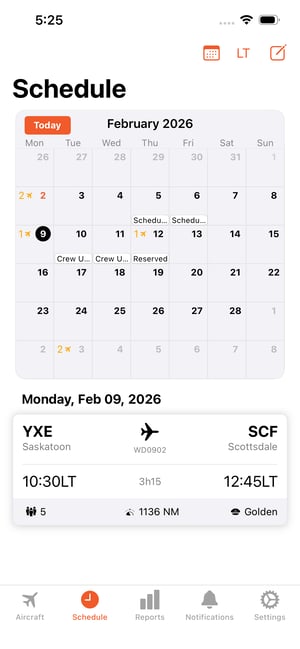
This enhancement focuses on future schedules (up to one year ahead), with options to toggle between the new Calendar view and the previously existing List view. The Calendar view is set as the default and resets to the current month upon app launch or switching aircraft.
Purpose and Benefits
- Clear Visualization: See aircraft flights, maintenance, and other tasks at a glance, including multi-day events split across dates.
- Improved Planning: Quickly identify availability and locations for specific dates, supporting better decision-making.
- Simplicity and Consistency: Designed for single-aircraft focus, adhering to FL3XX brand guidelines and matching UX from Crew and Dispatch apps.
Accessing the Calendar View
- Open the FL3XX Owner App and navigate to the Schedule tab.
- Tap the toggle button in the top section to open a popover menu.
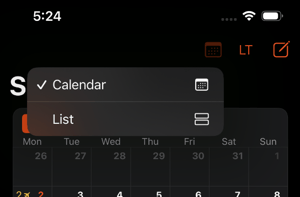
- Select Calendar (default) or List to switch views.
- The app defaults to Calendar mode after a cold start.
- Switching aircraft resets the view to the current month/day.
Key Features
Calendar Navigation
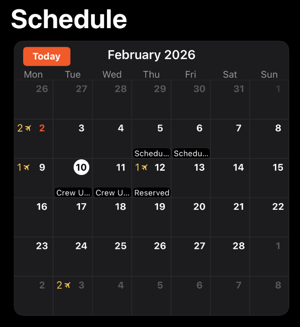
- Monthly Layout: Weeks displayed in rows with a frozen month header.
- Gestures: Slide left/right to change months.
- Today Button: Located top-right; tap to jump back to the current date.
- Future-Focused: Only shows current and future days (past dates are not displayed or interactive).
- Performance: Smooth scrolling with on-demand loading for additional months.
Event Display
- Flights: Shown with a count (e.g., "2" next to a yellow aircraft icon) in the date cell.
- Details include: Departure/arrival airports (IATA code + main city), times, flight number, passenger count, distance, and PIC.
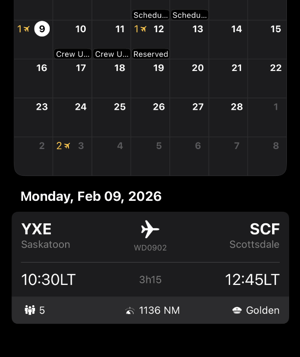
- Details include: Departure/arrival airports (IATA code + main city), times, flight number, passenger count, distance, and PIC.
- Tasks:
- Types displayed: Scheduled Maintenance, Unscheduled Maintenance, Reserved, AOG (Aircraft on Ground), Crew Unavailable, Flight (Dummy).
- Details include: Duration, airport (IATA + city), task title, placeholder, start/end date and time.
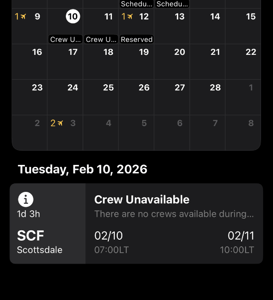
- Multi-Day Events: In Calendar view, tasks/flights spanning multiple days appear on each relevant date. In List view, they appear only on the start date (to avoid clutter).
- Note: This difference may cause minor confusion when switching views; check the start date in List mode for full details.
Interacting with Events
- Tap a date in the Calendar to display events for that day at the bottom.
- If many events, a "+..." indicator appears; tap to open the full scheduled view.
- Tap an individual flight to open a slide-up drawer with the booking details.
List View (Details)
- Existing list of flights remains unchanged.
- Events appear only on start dates for multi-day items.
Important Notes
- Task Logic: Currently hardcoded to specific types and severity-based highlighting (high/medium priority). Future updates may allow dynamic adjustments via operator settings.
- Differences from Web App: Mobile uses severity grouping; web uses predefined colors per task type, including states like closed/released.