
After confirming that you are using the latest version of the app, please follow the steps below for the relevant issue.
Login Issues
Unable to log in or issues during authentication
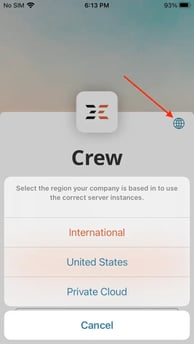
- Verify U.S. or international environment (see image below)
- Verify user credentials with your company administrator
- Verify user access rights with your company administrator
- Check network connection
- Confirm the app version
App Crashing or Freezing
The FL3XX app closes unexpectedly or becomes unresponsive
- Force close the App
- Reinstall App
- Update App
- Reboot Device
Synchronization Issues
The app is not updating or syncing data as expected
- Verify internet connection
- Perform a manual sync
- Force close the app and reopen the app
- Log out, delete the app, reinstall the app from the app store, and log in again
- Check for any system settings or third-party apps that could be blocking updates. For Android, this could be the "Restrict background data" setting; for iOS, this might be the "Background App Refresh" setting.
Notifications Not Working
The user is not receiving notifications
- Verify Notification Settings in the FL3XX app
- Confirm Device Settings Allow Notifications
- Check Network Stability
Crew Assignment and Availability
Crew assignments are not displaying correctly or are missing
- Check Synchronization: Verify that the app has successfully synced with the FL3XX server for the latest crew data (update bar on the bottom, press refresh button on top left)
- Crew Status: Check with company if the crew status is marked as "OK" in the web app
- User Roles and Permissions: Verify with company administrator that there are adequate permissions to access that flight data
Offline Access to Flights and Documents
Cannot access flights or documents offline
- Check Synchronization: To verify that the user has downloaded the flight, access it or download it using the download feature
- Cache: If the user should be able to access these files offline but cannot, they should try clearing the app's cache and then attempt to download the flights or files again
- Storage: Make sure that the user's device has enough storage to store offline data
Calendar or Duties Page Mismatches
Cannot see all flights or duties
- Refresh: Force refresh the duties or calendar page by clicking the refresh button
- Filters: Clear any filters and refresh the screen. Make sure the view settings are set to display all relevant information.
- Sync Issues: It may be an issue with the app's sync with the server. Log out, completely close the app, and then log back in
- System Settings: Check for any system settings or third-party apps that could be blocking updates. For Android, this could be the "Restrict background data" setting; for iOS, this might be the "Background App Refresh" setting.
Basic Troubleshooting Steps
- App Restart: Close and restart the app. A simple force close and restart can often resolve many issues.
- App Re-Install: Log out, delete the app, install it again from the respective app store, and then log in again.
- Device Restart: Reboot the device.
- Check Storage Space: Ensure sufficient device storage.
- Safe Mode (Android): Reboot the device in safe mode.
- Background App Refresh (iOS): Ensure background app refresh is enabled.
- Check Device Settings: Look for settings affecting app functionality.
- Change Networks: Verify if the issue persists on different networks.
Next Steps
-
If the above steps do not resolve the issue, please contact support using the "Report an Issue" feature on your device's Settings page.
-
Please provide a brief description of the issue, including the steps that led to the problem.
-
Share any issues or error messages that appeared.
- Include screenshots or screen recordings. If unable to include them on the initial ticket, you can reply to the ticket's automated response, via email, and include them on the same ticket.