
Sign off a corrected discrepancy
Approve, view and report on signed items
Overview
Maintenance technicians can now sign off corrected discrepancies (HIL/MEL items) electronically with a personal PIN. Once signed, the discrepancy form becomes read-only and a sign-off PDF is attached to the item, giving you an FAA-compliant record of who corrected and approved each item.
The feature is off by default. An administrator turns it on with the FAA Maintenance Regulatory eSignature setting, available from release 3.37.
With the setting on:
- Ticking Item Corrected (and Approved By) on a discrepancy asks for the user's PIN.
- A signed item can only be edited by users with Administrator access rights.
- Each signed item gets a downloadable sign-off PDF.
- The HIL/MEL Item report shows who corrected and approved each item, with the PDF attached.
Before you begin: enable the setting and set up PINs
You need Administrator access rights to turn on the setting.
Enable FAA Maintenance Regulatory eSignature
- Click your name in the top-right corner and select Settings.
- Go to Configuration › Dispatch, or type FAA in the settings search box and select Configuration.
- In the Dispatch panel, switch FAA Maintenance Regulatory eSignature on.
- Click Save.
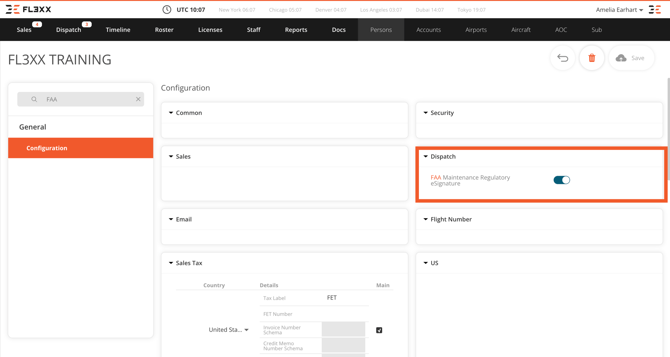
Note: When you turn the setting on, all discrepancies that were already marked as corrected become read-only for non-admin users, even if they were never signed with a PIN. If you turn the setting off again, the discrepancy form returns to its original behavior.
Set a PIN for each maintenance user
Every user who corrects or approves discrepancies needs a PIN. Each maintenance user sets their own PIN, so that no one else knows it. Administrators should not set PINs on a user's behalf.
- Go to Persons and open your own profile.
- On the General tab, under Access Rights, enter your PIN in PIN and again in PIN confirmation.
- Optionally, under Signature, click Upload file to add your signature image (png, jpg or gif; best size 500 × 360). It appears on the sign-off PDF.
- Click Save.
You can change your PIN the same way at any time. Other users cannot edit your PIN; only you and administrators can.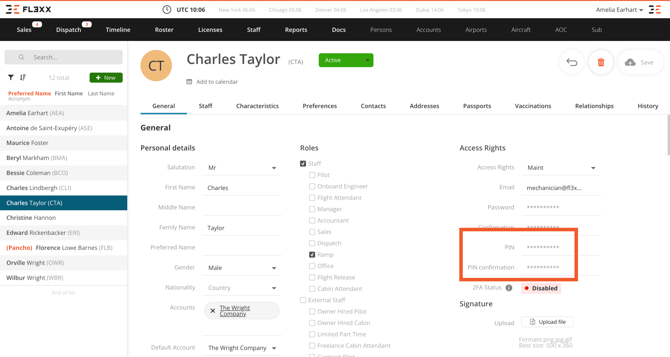
Sign off a corrected discrepancy
A yellow or red line under the aircraft type in Dispatch means the aircraft has an open discrepancy.
- Open the aircraft's maintenance record in one of two ways:
- In Dispatch, expand the flight and click the tail number to open the aircraft.
- Go to Aircraft and select the aircraft.
- Click the Maintenance tab (or scroll down) to Discrepancies / Minimum Equipment List.
- Click the edit icon on the discrepancy you want to correct.
- If the aircraft has released flights, a warning tells you they will be unreleased. Click OK to continue.
- Fill in the corrective action details: W/O Number, Maint. Org, Log #, Location and Corrective Action.
- You do not need to enter Hours or Cycles. They are taken from the aircraft log and added to the sign-off PDF.
- Corrected Date is filled in automatically when you sign.
- Tick Item Corrected.
- In the Add PIN window, enter your PIN and click Save.
- When asked Does the form needs Approval?:
- Click No if you are authorized to sign off the corrective action yourself. The discrepancy closes.
- Click Yes if it needs a second sign-off. The discrepancy stays open until it is approved.
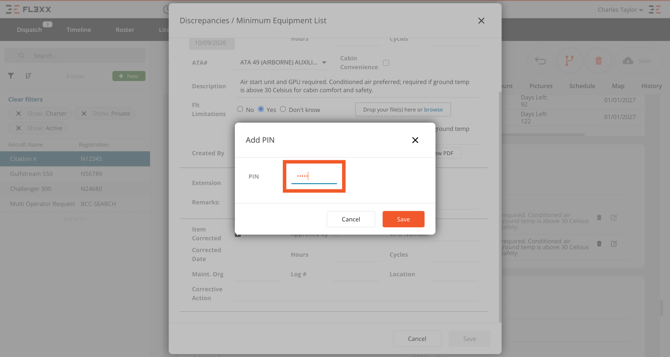 Signing saves the discrepancy straight away, so you don't need to click Save on the form afterwards.
Tip: Complete every field before you tick Item Corrected. The PIN prompt appears as soon as you tick the box, and the form locks once it is signed. In the approval question, Yes is selected by default, so pressing Enter answers Yes. Click the button you mean.
If the PIN is wrong, you see Unable to sign the item – Wrong PIN Code, Please Try Again, and Item Corrected is unticked. Tick it again and re-enter your PIN. If you haven't set a PIN yet, you see Missing PIN Code. Set your PIN on your profile first (see above).
Approve, view and report on signed items
Approve a corrective action
If the technician answered Yes to approval, an authorized user opens the same discrepancy, ticks Approved By and enters their own PIN. The discrepancy then closes. The Approved By box can only be ticked on items that are waiting for approval.
Signed items are read-only
Once a discrepancy is signed (and approved, if required), all fields are greyed out. Only administrators (users with write access to Admin Settings) can edit it. Signed items are also read-only in the crew mobile app.
30 days after an item is corrected (and approved, if approval was required), it is removed from the aircraft's Discrepancies / Minimum Equipment List. It stays available in the HIL/MEL Item report when Show Corrected is ticked.
View or download the sign-off PDF
Open the signed discrepancy and click View PDF or Download PDF next to Created By. The PDF shows the corrective action details, the technician's and approver's signatures, and your AOC number.
Review discrepancies in the HIL/MEL Item report
- Go to Reports › Maintenance › HIL/MEL Item.
- Choose a Date range. Optionally filter by Acft., Ops Team or Maintenance Controller.
- Tick Show Corrected to include closed discrepancies. Leave it unticked to see only open items.
- Click Generate Report.
- Click Export PDF or Export CSV to download it.
The report shows Item Corrected By, Corrected Date, Approved By, Approved Date, Corrective Action and the sign-off PDF in the Attachment column.
FAQ
I ticked Item Corrected and got "Missing PIN Code". You haven't set a PIN yet. Open your own profile on the Persons page, add your PIN, save, and try again.
I need to change a signed discrepancy. Ask a user with Administrator access rights. Only admins can edit a signed item.
Why did my older corrected items become read-only? Turning on FAA Maintenance Regulatory eSignature locks all items already marked as corrected for non-admin users, including ones signed before the setting existed.
Can I add a new discrepancy and sign it off straight away? Yes. You can tick Item Corrected on a new item before saving the page.
Does this change the crew mobile app? No. Crew can still view and submit discrepancies. Signed items are read-only, and the new sign-off fields and PDF are not shown in the app.
A corrected item has disappeared from the aircraft page. With the setting on, corrected items are removed from the aircraft page 30 days after they are corrected (or approved, if approval was required). Run the HIL/MEL Item report with Show Corrected ticked to see them and their sign-off PDFs.
How do I go back to the old discrepancy form? Turn the FAA Maintenance Regulatory eSignature setting off. The form returns to its original behavior.