
Table of Contents
Where Ground Repositioning Appears
A GR shares many concepts with a flight - crew, FBO/handler request, duty, aircraft counters and fuel - but it is not a flight:
- It has no flight number. It is identified by its operation type, e.g. "Ground Repositioning - Taxi".
- It always counts as crew duty, but never opens an FDP on its own.
- It never adds flight time, landings, sectors.
- It is never sold: no quote, pricing, invoice or sales documents, and it never appears in the Sales module.
Who uses it: Dispatch/OCC, crew planners, maintenance/CAMO, and crew (via the Crew App).
Before You Start
Ground Repositioning is available to all operators by default from release 3.40; no activation is needed.
- Access rights: GR uses your existing Flight access rights: read access to view a GR, write access to create, edit or cancel one. Access to aircraft tasks is not enough. No new permission is required.
- Aircraft: only your own (on-fleet) aircraft can be selected. Subcharter aircraft are not offered.
- FBOs: the handler list is the same one used for flights, filtered to the airport. If the FBO is missing, you can create it straight from the list.
- Optional - email template: an administrator can adjust the subject and body of the GR handler email in the Template Editor (search "Ground Movement": the templats are "Email Subject Ground Movement Request" and "Email Flt Body Movement Reuqest").
- Optional — check-in/check-out rules: to add reporting or post-duty time to a GR, set up an AOC check-in/check-out rule with the Workflow condition set to the GR operation type. Without one, the other rules apply in their usual order (at airport, positioning, workflow, domestic/international, home, away) ending with Default.
How to Plan a Taxi or Tow
Create the move
- Go to Timeline and click an empty spot on the aircraft's row at the date and time of the move.
- In the dialog that opens, choose + Add Ground Repositioning (next to Add Flight and Add Task).
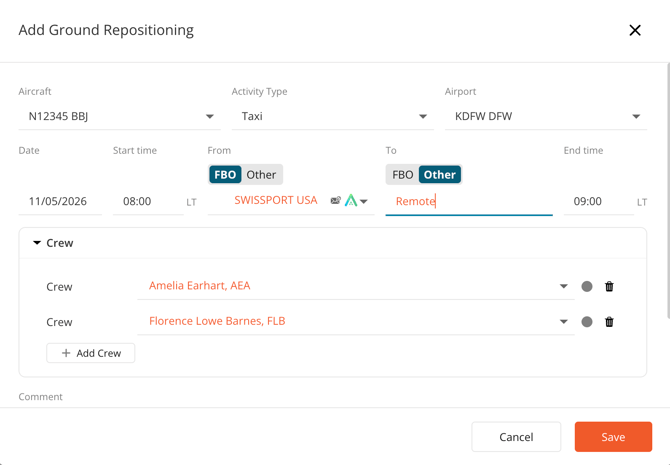
- In the Add Ground Repositioning dialog, complete the top row:
- Aircraft - pre-filled with the row you clicked; you can change it.
- Activity Type - Taxi or Tow.
- Airport - filled in automatically from where the aircraft will be at that date and time. It updates if you change the aircraft, date or start time. If the aircraft's location is unknown, it uses the aircraft's home airport, then your home base. It stops updating once you pick an airport yourself, and it can't be changed after saving.
- Complete the schedule row: Date, Start time, From, To and End time. For From and To, choose an FBO from the airport's list or Other and type a location (e.g. "Hangar 3").
- Optional: expand Crew and assign crew members (available for both Taxi and Tow).
- Optional: add move-level Comments / Notes, and per side a Request (sent to the handler) and Notes (internal only).
Request the handler
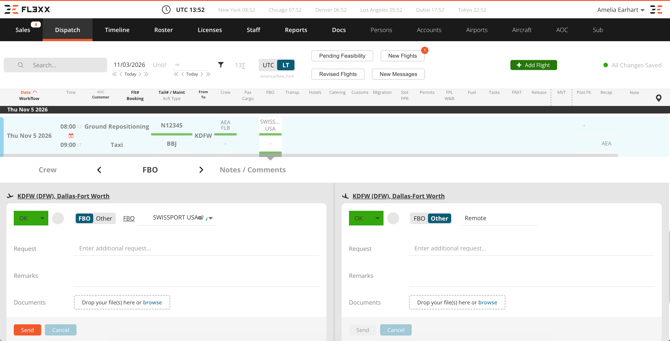
- Click the GR block to open its details, then open the From / To (FBO) section.
- For each side with an FBO selected, type what you need in Request (e.g. "Tow from FBO to Hangar 3, tug required")
- Click Send. The email uses the standard ground-handling layout, and the side's status changes to requested.
The Notes field on each side is never included in the email. If a side is set to Other, there is no handler to contact and Send is disabled for that side.
Notify the crew
In the Crew section, assign crew and send the notification. Crew are notified the same way as for flights and see the move in the Crew App. If you later change the times or the Taxi/Tow type, crew who had already confirmed and read the move are asked to confirm again. When you move the GR to another aircraft, your company's crew settings decide whether crew status is reset or crew are removed.
Complete the Post-Movement
After the move, open Post-Movement (on the web, or the Crew App) and record what happened: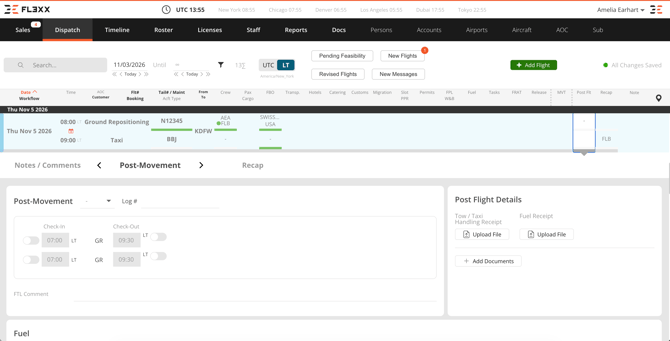
- Duty grid - Check-In and Check-Out per crew member, plus split duty, FDP extension and reduced rest options. There are no take-off or landing fields.
- Aircraft counters - airframe, engine, APU hours and cycles, and oil. The "Before" values carry over from the previous flight or GR. Leave them unchanged for a tow with no engine running.
- Documents - Tow/Taxi Handling Receipt, Fuel Receipt, Other.
- Fuel - departure and arrival uplift and burn. If you don't enter the arrival fuel, the next flight starts from the fuel before the GR, plus any uplift and minus any burn you entered.
Set the Post-Movement status to OK to close the move. Counters pass to the next flight only once the status is OK; fuel passes on even while the move is open. If your company setting is "OK status locks post-flight" is on, an OK GR is locked: it can't be edited, cancelled, or re-crewed, and only a user with the permission to revert post-flight can reopen it. If the setting is off, OK does not lock the GR.
Edit, move or cancel
- Change the Taxi/Tow type or times from the Task Movement section, using Save, Revert or Delete. The airport can't be changed; cancel the GR and create a new one instead.
- Drag the block to another aircraft on the Timeline. The times stay the same, and overlap warnings are checked again.
- Deleting a GR cancels it: it stays in the history as Canceled and is removed from the crew's schedule and the Crew App. A GR can't be cancelled once its Post-Movements is closed or actual movement times have been recorded.
Where Ground Repositioning Appears
Timeline and Dispatch
- Timeline: a blue block labelled "Ground Repositioning -Taxi" or "- Tow". Hover to see the type, crew, airport and From → To times. Use the Workflow filter to show or hide ground moves.
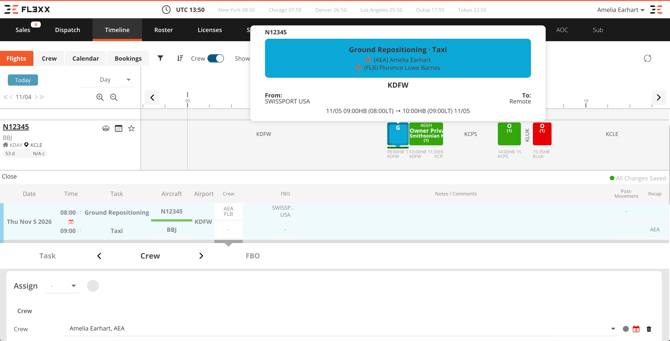
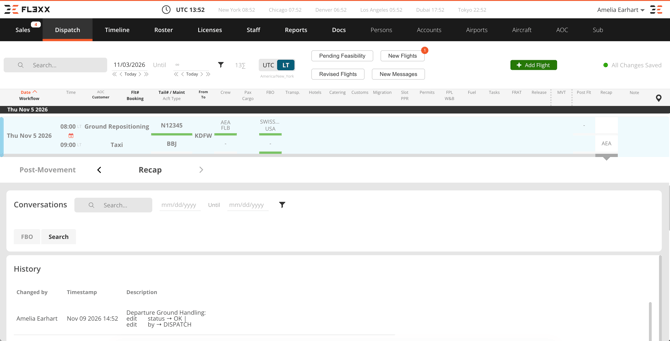
- Dispatch page: the move has a colored stripe on the left and no flight number. Columns: date, time, task, aircraft, airport, crew, FBO, notes/comments, post-movement and recap. If a side is set to Other or left empty, the FBO columns shows "-"
- Recap: the Handler tab shows the handler emails, the Search tab finds any other email, and History shows every change.
- Clash checks: when a GR overlaps a flight or another GR, the aircraft and crew get the usual schedul-overlap warning and crew clashes show the red calendar icon in Dispatch → Crew. It's a warning only: you can still save.
Crew duty and FDP
A GR always counts as duty and never opens an FDP on its own. Its effect on the FDP depends on where it sits:
|
Position of the GR |
Duty |
FDP |
|---|---|---|
|
Before a flight |
Counted |
FDP starts at check-in: the GR start or earlier if your check-in rule adds time |
|
Between two flights |
Counted |
Included in the open FDP |
|
Within a split duty |
Counted as duty, not rest |
The split duty stays, but the break ends when the GR starts, so the break gets shorter. |
|
After the last flight |
Counted until the GR ends, plus any check-out time |
FDP closes at the last flight's block-on; the GR does not extend it (unless "FDP equals DP" is on, see below) |
|
On its own (no flight that day) |
Counted from start to end |
No FDP |
Tow and Taxi follow the same rules. Your AOC check-in/check-out rules can add time before or after a GR, but they never start an FDP on a standalone day. If your AOC has "FDP equals DP" switched on, the FDP is the whole duty period, so a GR after the last flight does lengthen the FDP.
Roster
Each assigned crew member gets a blue vertical bar (same shape as a flight) counted as duty and included in rest and duty-limit checks. It never adds to block time or flight time totals.
Crew App and Dispatch App
- Crew App: crew see a GR only if they are assigned to it (an uncrewed tow does not appear). It is listed with their flights in time order, with four tabs: From/To, Crew, FBO and Post Movement. Only Post Movement can be edited on the phone, including offline.
- Dispatch App: all non-cancelled GRs appear next to flights, view-only.
Reports
GR rows are labelled with their operation type. The Workflow filter finds them in the Flights and Trip Summary reports. Flight time, landings, sectors and pax stay empty for GRs and are never added to flight totals.
|
How GRs are shown |
|
|---|---|
|
Flights |
GR rows included; take-off, landing and flight time empty; block time shown. The "post-flight data only" filter hides GRs. |
|
FTL / DTL, Duty Time Violation |
Duty row per crew member, FDP per the table above |
|
Logging |
One row per crew member once Post-Movement is OK; flight-only columns empty |
|
Log (aircraft logbook) |
GR rows included; readings show only once Post-Movement is OK. Open GRs show only with "Show Incomplete" |
|
Maint (CAMO) |
Only GRs with readings entered (oil counts). Open GRs show only with "Show Incomplete" without readings. |
|
Aircraft Stats |
GR rows included, open ones too; flight time empty. Block time is added to the totals; flight count and flight time are not. |
|
Aircraft Utilization |
Shown as a row of its own, with flight time and landings at 0. |
|
Trip Summary |
Always listed, with Taxi or Tow as the type. While Post-Movement is open, no actual times are shown, like an open flight. Not counted as a flight. |
|
Fuel |
GR rows included; per-block-hour ratios shown, per-flight-hour ratios N/A |
|
Monthly |
GR rows included; per-block-hour ratios shown, per-flight-hour ratios N/A |
|
Sales reports and Sales module |
Never included |
FAQ and Limitations
Can I log an unplanned taxi, such as a return to gate after a defect? No. Ground Repositioning is for planned moves only. Unplanned taxi-and-return events are handled separately.
Can I plan an engine run? Not with Ground Repositioning. The activity types are Taxi and Tow only.
Can a GR move between two airports? No. A GR is always at a single airport. For a move between airports, create a flight.
Can I change the airport after creating a GR? No. Cancel it and create a new one.
Will a GR add cycles or hours to the aircraft? Only if you enter them in Post-Movement. New GRs start at 0, and a GR with nothing recorded passes the previous values straight through to the next flight.
Why doesn't the next flight pick up my GR's counters? Counters pass on only once the GR's Post-Movement status is OK, the same as a flight. On aircraft that track Hobbs, Hobbs readings pass on even while the GR is open. Fuel always passes on.
Why are my attachments no in the handler email? Files saved on the side are not attached automatically. Add them in the email preview before you send.
Why isn't the handler email appearing in Recap? Recap groups handler emails whose subject contains "Ground Movement" or "Handling", with that exact capitalization, under the Handler tab. If you edit the subject and remove those words, find the email in the Search tab.
Does a GR stop me from double-booking the aircraft or crew? No. An overlap shows a warning but you can still save.
Can I create a GR for a subcharter aircraft? No. Only your own aircraft are offered.
Is GR available in the external API or webhooks? Not in this release. GRs are left out of external flight lists, webhooks and ForeFlight/PPS push. API exposure is planned as a follow-up