
2. Floating Airports (Second Home Base)
3. Airport-Specific Check-in & Check-out Times
1. Key Benefits
- Support for multi-base crew operations
- Accurate FTL base handling
- Reduced number of unnecessary hotel and transport entries
- Airport-level control of duty buffers
- More accurate FDP calculations and legality
2. Floating Airports (Second Home Base)
You can set up multiple home bases for crew members for operational and FTL purposes.
2.1 What Are Floating Airports?
Floating Airports allow a crew member to have one or more additional home bases alongside their primary Home Airport.
In FL3XX, Floating Airports are treated as equivalent to the Home Airport in terms of:
-
FTL calculations
-
Duty start and end logic
-
Hotel and transport logic
This supports crew members who regularly operate from more than one base.
2.2 How to Configure Floating Airports
- Go to Persons
- Navigate to the crew member's profile
- Set:
- Home Airport
- One or more Floating Airport(s)
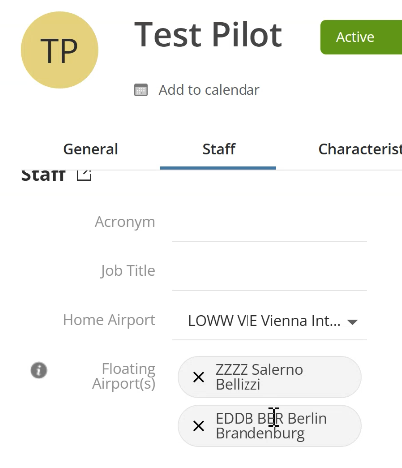
The Floating Airports selector uses the same airport database and UI as the Home Airport.
2.3 Home vs Floating Logic
If a Home Airport is selected:- The Home Airport remains the primary base.
- Floating Airports are treated as additional valid bases.
If no Home Airport is selected:
- The first Floating Airport is automatically assigned as Home Airport when clicking "Save".
2.4 Where Floating Airports Are Shown
Floating Airports are displayed in:
- Roster (left-hand crew panel), and
- Timeline (crew panel).
The display order is as follows:
- Home Airport
- Floating Airport(s)
2.5 FTL & Duty Behaviour
Floating Airports are treated as valid bases for:
- FTL base-related calculations,
- Duty start and end at base, and
- Base-related FDP rules.
This ensures correct legality when crew members operate from a Floating Airport.
2.6 Hotel/Accommodation (Hotac) Behaviour with Floating Airports
When a crew member is staying at a Floating Airport:
- No hotel is generated,
- No transport to the Home Base is generated, and
- The crew member must still position to the actual duty start airport if it is different.
This prevents unnecessary hotel and transport entries when a Floating Airport is used as a base.
2.7 Integrations & Reports
- The Primary Base (Home Airport) continues to be exported to the following integrations:
- PBS
- Wyvern
- Pulsar
- Allowance Report
- Persons export now includes:
- Home Airport
- Floating Airport(s)
- External crew APIs expose Floating Airport(s)
2.8 Floating Airports – Time Zone Validation
All Floating Airports must be in the same time zone as the Home Airport.
What happens if the time zones differ?
If a Floating Airport is in a different time zone:
- The "Save" button is blocked,
- An inline validation message is shown, and
- A red error popup is displayed.
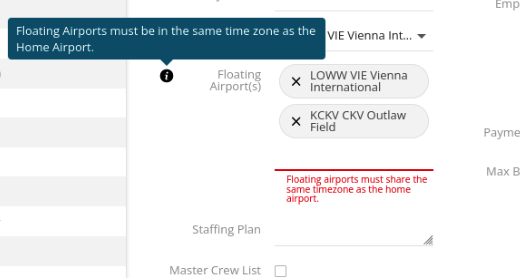
Validation message: "Floating Airports must be in the same time zone as the Home Airport."
3. Airport-Specific Check-in & Check-out Times
You can now define check-in and check-out times for specific airports, allowing more accurate duty and FDP calculations based on local operational requirements.
3.1 Configuration (Contact our Support-Team)
-
Go to AOC Settings → Reporting / Check-in / Check-out
-
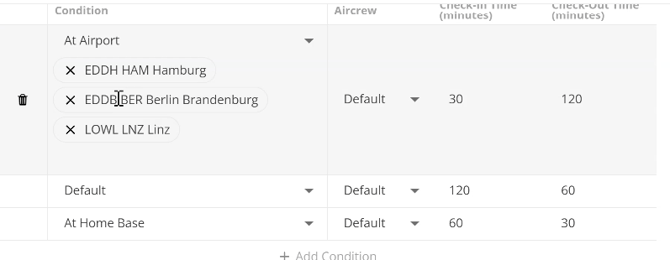
Add a new rule with the condition "At Airport"
-
Select one or more airports and define:
-
- Check-in time
- Check-out time
3.2 Priority Order of The Settings
When calculating crew times, the system applies rules in the following order:
- Aircraft settings
- Crew-position specific (FD / CC)
- Highest priority
- AOC “At Airport” settings
- Apply only to selected airports
- Override AOC defaults
- AOC default settings
- Used if no aircraft or airport-specific rule applies
3.3 Crew Time Adjustments
When a crew member arrives or departs at an airport with defined times:
- Check-in and check-out are adjusted automatically.
- Adjusted times are shown in:
- Roster,
- Timeline,
- FDP panels, and
- Reports.
Airport-specific times override other AOC settings when applicable.
3.4 FDP Impact
Airport-based check-in and check-out times directly affect:
- FDP start and end,
- FDP legality, and
- Warning and violation logic.
Multi-Airport Duties
For multi-airport duties, each leg uses the correct airport-specific times. This ensures the FDP is calculated using the appropriate local rules.