⚠️ Currently, this feature’s logic is based on the German standard of the EU E-Invoicing regulation.
We are continuously working to improve this feature. Please let us know if anything is missing to ensure compliance with your country’s regulations through Upvoty (app.fl3xx.com/new/features or app.fl3xx.us/new/features) or by sending a message to support@fl3xx.com. This will help us prioritize further enhancements.
This feature helps ensure compliance with country-specific EU e-invoicing rollouts and enables the automatic import of invoices into compatible accounting systems.
1. About
EN 16931 is the European standard that defines the semantic data model (mandatory fields and validation rules) for electronic invoices across the EU. In practice, many accounting systems expect an XML representation in a standardized syntax such as UBL 2.1.
In FL3XX, e-invoicing is delivered as an optional XML attachment sent with the invoice email (alongside the PDF). This supports workflows in which recipients (or the operator’s own accounting inbox) can automatically import invoices into their accounting systems.
Summary:
-
FL3XX generates EN 16931 compliant XML using UBL 2.1.
-
The XML is provided as a separate attachment (not embedded in the PDF).
2. Key Features
FL3XX supports the following key features for EU e-invoicing:
🧾 Automatic XML generation for invoices using EN 16931 (UBL 2.1)
📎 Email attachment support - XML sent together with the PDF invoice
⚙️ Configurable behavior (disable, opt-in, opt-out) via System Settings
📤 Accounting workflow friendly - supports sending with BCC to an operator-controlled accounting inbox for automated import
3. How it Works
3.1 Enable / Configure Invoice XML Behavior
-
To enable or configure this feature, navigate to:
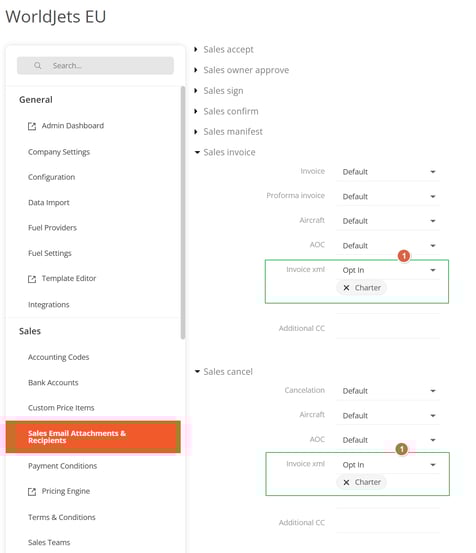
System Settings → Sales → Sales Email Attachments & Recipients
-
Look for the setting called "Invoice XML [1]".
-
Then select one of the following options from the dropdown list:
| Setting | Description | Default for all operators |
|---|---|---|
| Never | No XML is generated or available in email dialogs. | ✅ |
| Opt In | XML is available in the send dialog but is only attached if the user opts in. | |
| Opt Out |
XML is attached by default; the user can uncheck it in the send dialog. |
3.2 Send Invoices With XML
Invoice or Cancel dialog
When issuing or sending an invoice (not a pro forma) via the Invoice button or the Cancellation workflow, users will see an additional attachment with a checkbox in the Invoice send dialog.
4. Troubleshooting
If you experience issues with the feature, please contact support@fl3xx.com for assistance with connection reauthorization.