
Crew App – Offline Mode
Calendar Availability Offline
- The app stores full calendar months once you open them
- You can access all previously viewed months offline
- If a month has not been opened before, it may not be available offline
How it works:
- Calendar data loads instantly from your device
- When online, updates are synced automatically in the background
- No manual refresh is required
Notes:
- Flight details (per day) become available offline after they have been loaded
- If data was not previously opened or cached, it may require connection
Calendar Offline — Persistent Month Caching (Crew App)
The Crew App calendar loads instantly from local storage, even when you are offline.
How it works
When you open or scroll to a month while connected, the app stores the calendar data for that month on your device. The next time you view that month — online or offline — it loads immediately from local storage. When a connection is available, the app refreshes data silently in the background and updates your screen if anything has changed.
What is cached
- Calendar flight counts (the number displayed on each day cell)
- Roster duties
- Flight list (the list you see when you tap a day)
Full flight details are not pre-cached automatically. To access complete flight details offline, use the Download Flights feature while you are connected.
What you will see when offline
- Months you have previously opened: load instantly with flight counts, duties, and flight list.
- Months you have never opened while online: show an empty calendar. Open them while connected first to cache the data.
- The default cached range (current month ± 15 days) remains as a minimum fallback.
Applies to: Crew App on iOS and Android. Does not apply to the Dispatch App.
Flights
The app includes an offline mode that enables you to access your flights and view all the details from the most recent update, even without an internet connection. Your flight data, including any changes you make, will be saved and stored locally for easy reference. This means that you can continue to view and edit your flight data, including any attachments, whether you're offline or if you reopen the flight in the app.
To view flights offline, you'll need to open or download the flight while you're online so that you can access it when you're offline. Simply click on the flight and open any of the icons on the flight details page. Alternatively, you can swipe left on a flight and select the download option, or use the Download option in the top right menu.
Once you've done that, you can open the flight offline and make any necessary changes, with or without an internet connection. When you regain online connectivity, you can press the orange cloud within the flight or simply tap on the flight again if you've exited it. The mobile app will compare your local records with the new records from the web app. If there are any conflicts between the two sets of records, you'll be notified. This ensures that any changes you made while offline are synced with the web app, allowing you to seamlessly continue working with the most up-to-date information.
Documents
-
Best practice: use the download button for all docs to be available for offline use. You must be online in order to download them initially.
-
Opened docs can be reopened offline. The file is saved to the device on first open and survives app close and phone restart. Cached files are cleared by: Settings > clear docs cache, logout (manual or forced by token expiry), and an app update that changes the local database schema (the list is empty offline until it’s loaded online again).
-
Docs not opened before going offline cannot be opened.
Poor Network Conditions
It's crucial to understand how the Crew App handles network connectivity challenges, particularly during tasks that require data transmission, such as uploading a Post Flight document. Should you find yourself in areas with suboptimal network conditions, the app attempts to proceed with downloading or uploading processes. However, it does not automatically switch to offline mode in such scenarios. These attempts might result in a timeout after 30 seconds, leading to unsuccessful data transmission.
To mitigate this, users experiencing poor network connectivity are advised to manually activate Airplane Mode on their device. This action forces the app into offline mode, allowing it to store data locally without attempting any online transactions. Once a reliable network connection is re-established, users can then synchronize their data with the app. This proactive approach ensures that your work progress is preserved and subsequently synced accurately, optimizing app functionality and data integrity in varying network conditions.
Partial offline download status (iOS only)
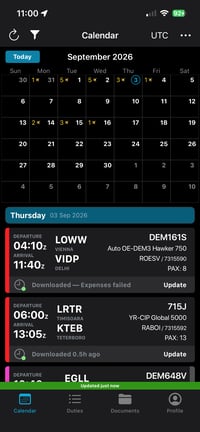
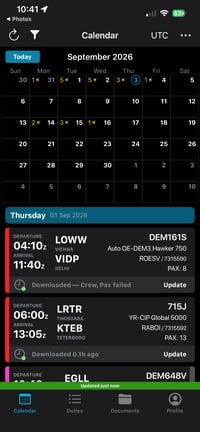
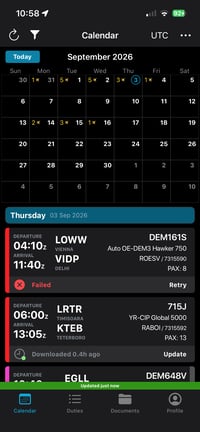
When a flight is downloaded for offline use, each piece of data (Maintenance, Expenses, Chat, etc.) is now evaluated on its own instead of the whole download passing or failing as one unit.
How to use:
-
No failures → flight shows "Downloaded X ago"
-
1–10 failed items → flight shows "Downloaded — [item], [item] failed", naming what didn't load
-
More than 10 failed items → flight shows "Failed"
-
Opening an affected area offline shows "unavailable offline" instead of blank/broken content
-
If a failed item succeeds on a later sync, its "unavailable offline" state clears automatically
%20-%202026-09-03%20at%2011-17-43-png.png?width=400&height=609&name=Simulator%20Screenshot%20-%20iPad%20mini%20(A17%20Pro)%20-%202026-09-03%20at%2011-17-43-png.png)
Key benefit: A single non-critical failure no longer hides an otherwise successful offline download.