
Crew members can directly manage and update the status of their assigned services within the app. This feature allows you to efficiently handle services like catering, transportation, customs, and more, enhancing communication with your team and ensuring accurate service tracking.
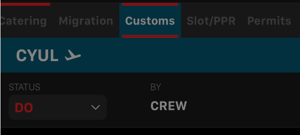
Important Note: You can only edit the service status if the service is assigned to "By" the "Crew." Ensure that the service is marked accordingly before attempting any changes.
-
Navigate to the Flight Details:
- Go to the relevant flight in the Crew App and select the service tab (such as Handler, Transport, Hotac, Catering, Customs, Migration, PPR, Permits, FPL, W&B, or Fuel).
-
Update the Service Status:
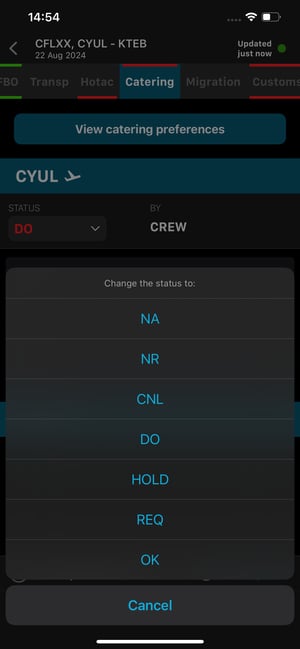
- If the service is assigned to you (Crew), tap the dropdown list (DDL) next to the service status.
- Choose from the available options: "NA," "NR," "CNL," "DO," "HOLD," "REQ," or "OK."
- Confirm the change by selecting "OK" or cancel the update if needed.
-
Real-Time Sync:
- The status will update in real time and sync immediately with the web app, allowing your team members to see the latest changes.
How to edit notes or add attachments
- Open a flight and go to the Customs or Migration tab.
- Tap the Notes field to edit it, or use the attachment control to upload a document.
- On the Customs tab, tap the info icon (arrival or departure) to open the Customs Info screen in full screen.
- Changes sync across devices automatically, including after offline editing.
Note: The info icon only appears when Customs Info data exists for that arrival or departure.
Important Notes:
- This feature is available only when the Crew App is online.
- Only crew members with the appropriate permissions can update the status.