
The Airport Recency feature tracks airport-specific qualifications such as landings, take-offs, SIM validations, and briefing acknowledgements. It updates recency automatically and provides clear indicators on web and mobile for every airport tied to a flight, including alternates.
1. How to Enable Airport Recency
3. What Triggers a Recency Update
1. How to Enable Airport Recency
Please contact support@fl3xx.com in order to activate this feature.
2. Qualification Setup
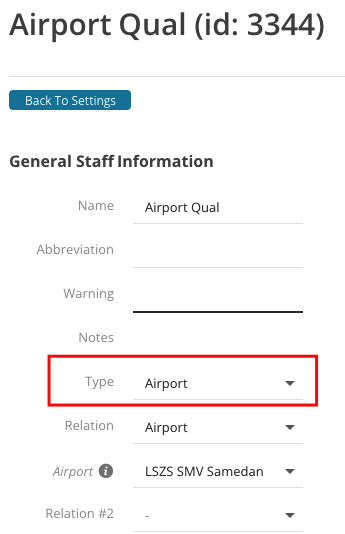
In Qualifications → Type, select Airport.
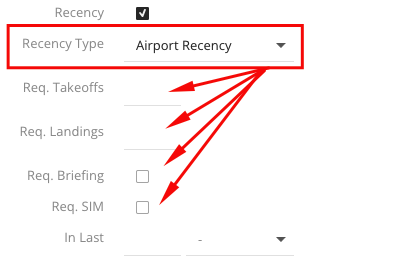
You can then define for each airport:
-
Required landings and/or takeoffs.
-
Whether the requirement applies to specific crew positions (PIC/SIC).
-
Whether recency is fulfilled by landings, SIM, or briefing only.
2.1 Briefing Definition:
A briefing is considered complete when:
-
A crew member visits the airport, or
-
A briefing requirement is detected in the qualification, and no landing or take-off requirements exist, or
-
The crew manually acknowledges the briefing.
Validity and expiration follow the qualification setup.
3. What Triggers a Recency Update
Recency updates automatically when:
-
Required landings or take-offs are logged at that airport.
-
A SIM duty includes “For Airport” and is assigned to the same airport.
-
A crew member acknowledges a briefing (used when no landing or take-off is required).
-
Qualification validity rules are met and recalculated.
If DEP/ARR/ALTN airports change, all related indicators reset and must be acknowledged again.
4. Mobile App (Crew App)
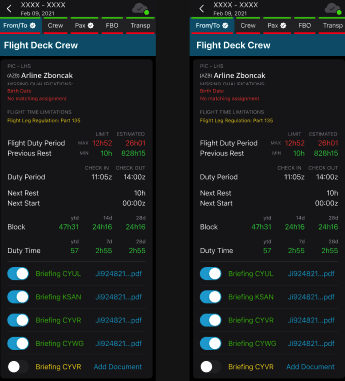
Airport briefings appear in the Crew tab, under the Airport Briefing panel.
4.1 Visibility
-
Only the logged-in crew member can see their own briefing items.
-
Items appear only when airportRecencyEnabled = true.
4.2 Actions (Crew App)
-
Toggle acknowledge on/off (if editable = true).
-
Upload or delete briefing documents.
-
Offline support: changes sync when back online.
-
If editing is blocked:
“Briefing not editable. Already acknowledged for this airport.”
4.3 Status Colours
Each airport briefing displays a colored bubble:
-
🔴 Flight not acknowledged / Briefing not acknowledged
-
🟡 Flight acknowledged / Briefing not acknowledged
-
🟢 Briefing acknowledged (flight acknowledged or not)
4.4 Flight Reminder
If Airport Recency is enabled, FL3XX schedules an automatic check 2 hours before blocks-off (estimated).
“Your flight to XXXX is in less than 2h. Please check your airport briefing.”
That check looks at all airports attached to the flight, not just the destination: departure + destination + any alternates
5. Web App Integration
5.1 Visibility
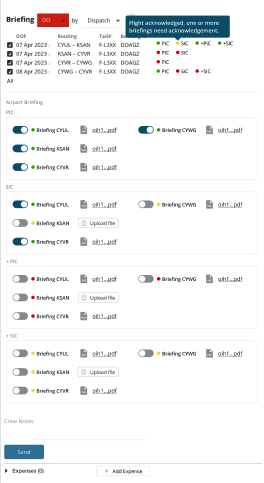
Dispatch can see all crew members’ airport briefing items whenever the feature is enabled.
5.2 Actions
-
Toggle acknowledged on/off (if editable).
-
View documents only.
It is not possible to add or remove briefing files. If one tries, the following warning appears: “Briefing modification is not allowed.”
5.3 Colour Status
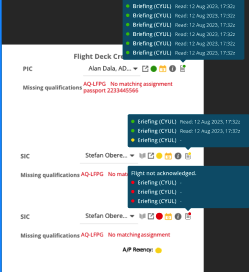
The color status is displayed next to each crew member for each airport:
-
🔴 Flight not acknowledged, briefing not done.
-
🟡 Flight acknowledged, briefing not done.
-
🟢 Briefing acknowledged.
A colored dot also appears on each flight leg indicating the crew position:
-
🔴 “Flight needs acknowledgement”
-
🟡 “Flight acknowledged; one or more briefings need acknowledgement”
-
🟢 “All briefings acknowledged”
5.4 Additional Web Features
-
Hover to see the timestamp of briefing acknowledgement.
-
A magenta bubble appears when airports change and the briefing must be redone.
-
History: briefing actions are recorded in Recap/History.
5.5 Briefing Documents
Available on Web and Crew App:-
Upload (crew only), delete (crew only), or view (crew and dispatch).
-
Supports multiple airports per flight (DEP, ARR, ALTN).
-
Documents are included in the Flight Briefing Package sent by Dispatch.
5.6 Expiry Notifications
All airport-related recency items use the existing “Notify on Recency Expiry” setting. Notifications include:
-
Airport ICAO
-
Expiry date
-
Qualification name
5.7 Recency Logic Notes (CAT B/C)
-
CAT B → PIC requires briefing only (validity tracked via qual tree).
-
CAT C → Recency may be achieved through:
-
SIM session (landing count)
-
Actual flight (landing count)
-
Briefing (SIC only)
-
Combined SIM + flight
-
Note: The airport categories listed above are for illustration only. The Airport Briefing feature does not use group categories to apply briefing requirements automatically. Recency and briefing logic are based solely on individually configured airport items in the qualifications tree.
If the staff page already contains a valid airport qualification, dispatch warnings are suppressed.
6. Summary
Airport Recency gives operators complete control over airport-specific requirements.
It supports landings, take-offs, SIMs, briefings, attachments, offline capability, color-coded indicators, and automatic recency updates. Every airport used on a flight is covered: DEP, ARR, and alternates.