
3.4 Combining Access Types and Rule Precedence
3.6 Check a Person’s Access on the Persons Page
4.2 Frequently Asked Questions
1. About
By default, most FL3XX users see all of the operator’s aircraft fleets and everything that belongs to them. Aircraft Access lets an operator limit this, so a person, a hand-picked group of people, or everyone holding a certain access right sees only the aircraft you choose.
An aircraft that a user has not been granted access to behaves as if it does not exist for that user: there is no row, no name and no data, and a direct link answers “not found” or “no access”. This applies in the web application and in the FL3XX mobile apps (Sales, Crew, Dispatch and Owner).
Aircraft Access configuration is optional. If you do not create any rule, nothing changes and every user keeps the visibility they had before.
2. Key Features
FL3XX supports the following key features with Aircraft Access:
- Rules per person or per access right
Access can be granted for Person(s) (e.g. John Smith) or Right Group (e.g. Crew). - Eight access types:
All aircraft, Assigned aircraft only, Manually selected aircraft, AOC aircraft, OPS Team filter, Owner aircraft, All charter aircraft, All subcharter - Immediate and dynamic
Changes to a rule, or to the data behind it, apply straight away. - Hidden means missing
Flights, quotes, Timeline, roster, HIL/MEL, tasks and reports of a hidden aircraft are not shown. - Reports limited by aircraft visibility
- Mobile apps follow the same rules
- Full history logging of every rule change
3. How It Works
3.1 Open Aircraft Access
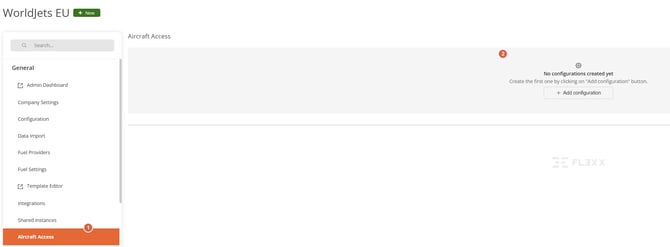
Go to Settings → General → Aircraft Access [1]. The page lists all rules, including their numbers (#), who the rules apply to (Applies To) and which aircraft they grant (Access Type).
Until the first rule is created, the page shows “No configurations created yet. Create the first one by clicking on “Add configuration” button.” [2]
📔 Note
Managing the rules setting page is controlled by dedicated permission.
Administrator and Administrator + Airports have full access to the configuration by default. Is disabled for all other access rights.
The following three levels of permission can be configured for this setting page:
| Level | What the user can do |
|---|---|
| No Access | Cannot open the Aircraft Access page or see which aircraft anyone has been granted. |
| Read-only | Can view the page and each person’s aircraft access, but every field is read-only. |
| Editable | Can create, edit and delete rules. |
3.2 Create a Rule
- Click Add configuration.
- In the Applies To column, choose who the rule applies to:
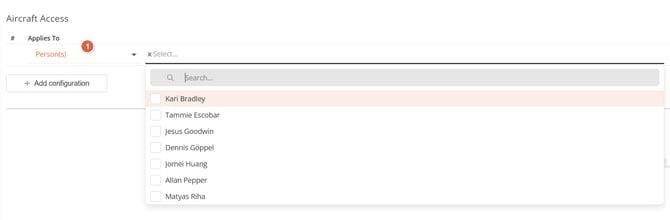
- Person(s) - one person or a list of people. Only active users who have an access right assigned can be selected. [1]
- Right Group - everyone currently holding the chosen access right(s). One rule can cover several access rights, for example Crew and Dispatch / Ops. [2]
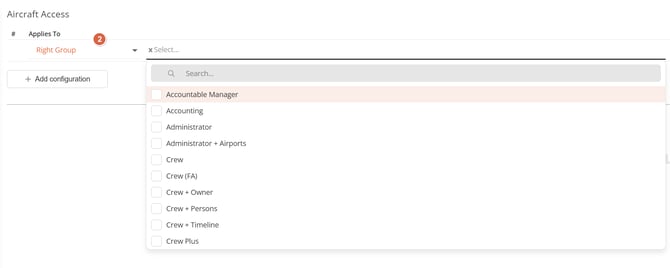
- Open the Select... list next to it and tick the people or access rights. Both lists have a search field.
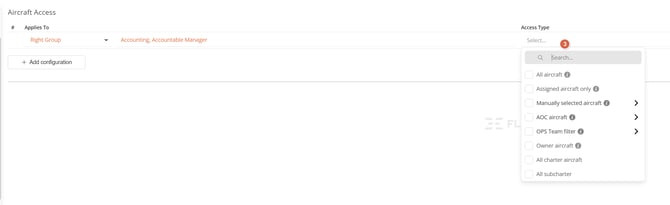
- In the Access Type column, tick one or more access types (see 3.3 Choose Access Types) and, where an arrow is shown, choose the details (for example the aircraft, AOC or OPS team). [3]
📔 Note on who a rule can cover:
- A person can be in only one Person(s) rule, and an access right in only one Right Group rule. The selectors do not offer anyone already covered.
- Inactive users and users without an eligible access right cannot be configured.
- You cannot select aircraft, AOCs or OPS teams of another operator.
3.3 Choose Access Types
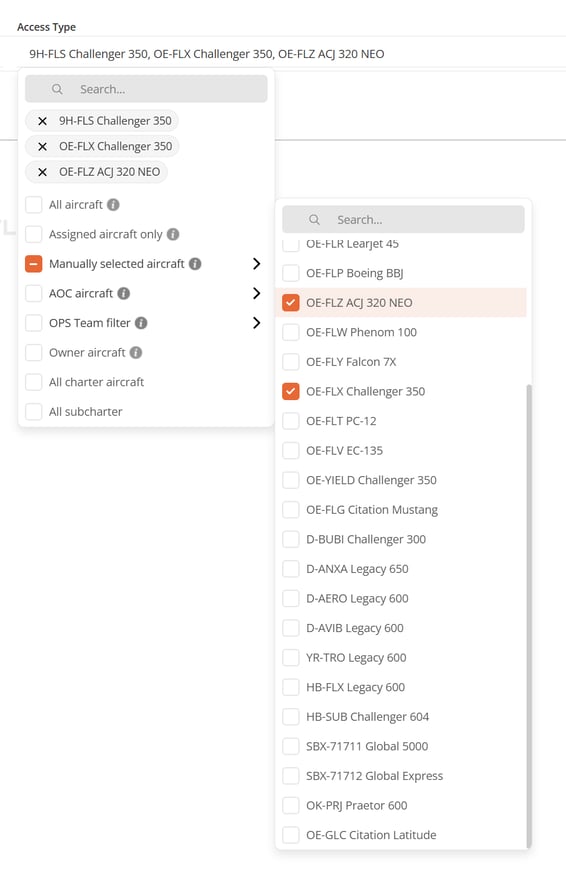
The Access Type list offers the options below. Tick one or more.
Manually selected aircraft, AOC aircraft and OPS Team filter open a second list to choose from. Hover the info icon next to each option for a short description.
| Access type | What the person sees |
|---|---|
| All aircraft | Every aircraft of the operator. |
| Assigned aircraft only | Aircraft the person is assigned to through the Aircraft ↔ Crew assignment on the aircraft page. |
| Manually selected aircraft | Aircraft you select one by one in a searchable list showing registration and type. |
| AOC aircraft | All aircraft of the AOC(s) you choose. |
| OPS Team filter | All aircraft in the OPS team(s) you choose. |
| Owner aircraft | Aircraft linked to the person through the Owner Account - Person - Aircraft link. You can read more about Owner access here. |
| All charter aircraft | Aircraft classified as charter on the aircraft page. Subcharter aircraft, including aircraft on a subcharter AOC, are not included. |
| All subcharter | Aircraft classified as subcharter on the aircraft page. |
📔 Note on charter and subcharter
Aircraft that belong to neither classification on the aircraft page are not covered by either “All charter aircraft” or “All subcharter”.
📔 Note on dynamic access
Access from an AOC, an OPS team, a Crew assignment or the charter / subcharter class is dynamic. When the underlying data changes, the people covered by the rule are updated automatically.
3.4 Combining Access Types and Rule Precedence
→ Several access types in one rule
When a rule has more than one access type, the user sees the sum of all of them.
📝 Example
A rule with “AOC aircraft: AOC One” and “Manually selected aircraft: D-ABCD” gives the person every aircraft of AOC One plus D-ABCD.
→ Person rule or group rule?
Only one rule ever applies to a person. If a person is covered by both a Person(s) rule and a Right Group rule, the Person(s) rule wins. It does not add to the group rule, it replaces it.
📝 Example
The Crew access right has a rule “Assigned aircraft only”. Stephen is also Crew and has his own Person(s) rule “Manually selected aircraft: D-ABCD”. Stephen sees only aircraft D-ABCD.
3.5 Rule Numbers
Every rule gets a number, for example #1, so you can refer to it when communicating with colleagues and Support.
- The number is only a label and has no priority meaning.
- It is assigned once, in sequence, and stays with the rule.
- Deleting a rule does not renumber the others, so gaps such as #1, #4, #7 are normal.
3.6 Check a Person’s Access on the Persons Page
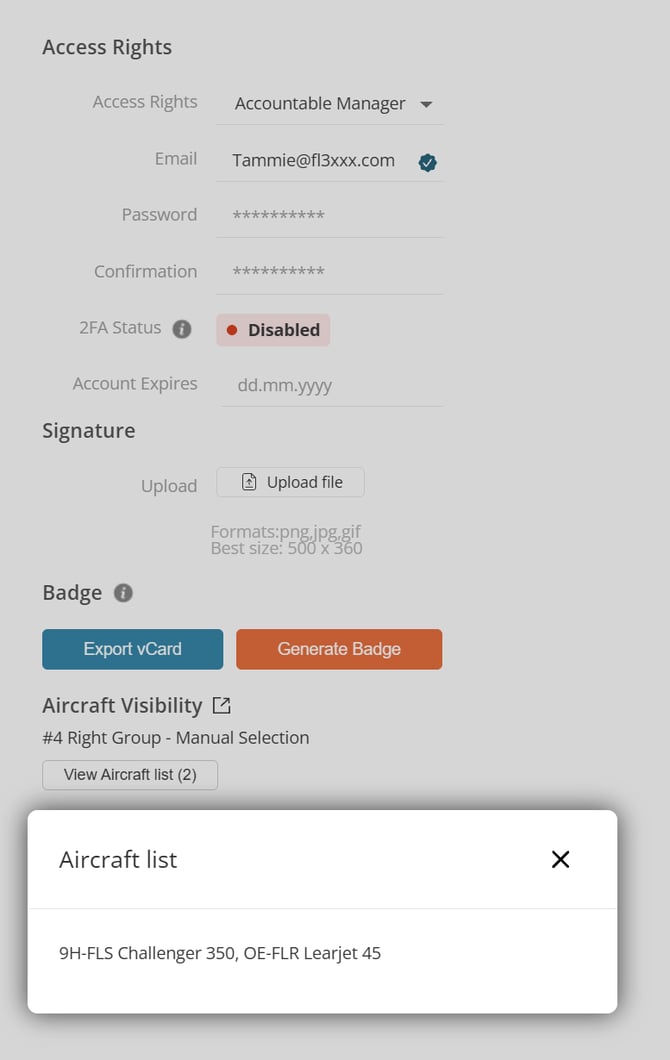
On the General tab of each person’s page, below the Access Rights panel, the Aircraft Visibility section shows what access that person is granted. The information on the Persons Page is read-only - changes can only be made on the Aircraft Access settings page.
The following information is shown on the person's page:
- The rule number, who it applies to and the access type, for example #7 Right Group - Assigned.
- A View Aircraft list (n) button, where n indicates the number of aircraft the respective person can see. Clicking the button loads the full list on demand, page by page.
This info section is visible only to users with the Aircraft Visibility permission at Read-only or Editable level.
📔 Note on limited administrators
When an administrator who is themselves limited opens this section, it still shows the complete aircraft access of the person being checked, including aircraft the administrator cannot see elsewhere. This is deliberate, so the page always reflects the true configuration.
3.7 When Changes Take Effect
- Creating, editing or deleting a rule applies immediately.
- Changes to the data behind a rule also apply immediately, without re-saving the rule: aircraft moved in or out of an AOC or OPS team, a Crew assignment, an Owner link, an aircraft’s charter / subcharter class, an aircraft created, deactivated or deleted, or a person moved to or from an access right.
Mobile app users should log out and back in after their rule changes (see 3.12 Mobile Apps).
3.8 What Restricted Users See
For a user covered by a rule, aircraft that are not granted are hidden everywhere:
- Timeline
No row for hidden aircraft. In the Crew Timeline, legs on hidden aircraft are removed from a person’s duty period, and a period with nothing left visible is not shown. The person always remains listed. - Dispatch and flights
Only flights of visible aircraft are listed. - Sales
Quotes, versions, emails, the quote badge count and payments follow the rule. - Roster
The person is always listed, but duty and flight blocks on hidden aircraft are not drawn, without a placeholder. - Aircraft
Positions, tasks, maintenance, HIL/MEL items and fees of hidden aircraft are not visible. Duty types whose name contains the registration of a hidden aircraft are left out of the pickers and filters. - Changes
Creating, editing or deleting tasks, schedules, roster duties, HIL items, Owner approvals, and quote payments or services on a hidden aircraft cannot be saved.
📝 Example (Roster)
A Dispatcher limited to aircraft 9H-BIG tries to add a duty for a Crew member that overlaps a duty on a hidden aircraft. The save is refused with the message “This change would affect a duty you don’t have access to”, and the hidden duty is never shown, shortened or deleted.
3.9 Special Cases
- Crewed flights
A user always sees the flights they are personally rostered on as Cr, with full briefing details, in the web application and the Crew app, even if the aircraft is not in their rule. This does not add a row for that aircraft to the Timeline Flights or Board views. - Quotes with several legs
A quote is visible if the main aircraft, or at least one leg’s aircraft (including a cancelled leg), is within the user’s access. All legs are then shown, so the person can have a full overview. - Owners
For an Owner covered by a rule, the rule replaces the list of owned aircraft in the aircraft pickers, the Owner search and the Owner app. - Shared operators
You cannot create a rule that names another operator’s aircraft, AOCs or OPS teams.
3.10 Reports
Reports are limited based on aircraft visibility. A user covered by a rule only gets data for the aircraft they are granted, and Owners only get data for the aircraft they own or are granted.
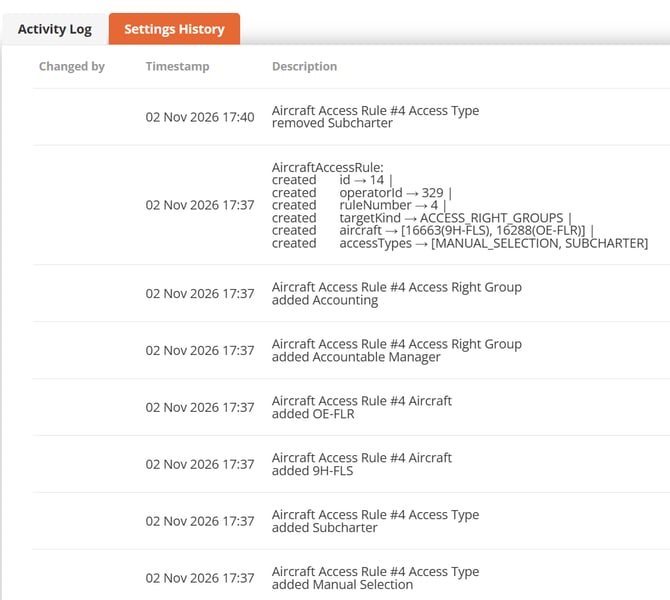
3.11 History Logging
Every create, update and delete of an Aircraft Access rule is recorded in Admin Dashboard → History: who made the change, what changed and when. Entries are listed per aircraft and name the rule, for example Rule #7 (Crew): added D-ABCD, removed OE-XYZ. A deleted rule’s entry records its full former contents.
3.12 Mobile Apps
The Sales, Crew, D and Owner apps follow the same rules automatically, with no app update needed. After rules are created or changed, ask the affected mobile users to log out and log back in so the app loads an updated view.
4. 📝 Summary
4.1 Activation
Aircraft Access is optional, and nothing changes until you create a rule. Administrator and Administrator + Airports can configure it straight away. If you have any other access right, please contact support@fl3xx.com to have this configured.
For the best experience:
- Decide who needs to be limited, and whether a Person(s) rule or a Right Group rule fits better.
- Create the rule under Settings → General → Aircraft Access and choose the access types.
- Check the result on the respective person’s page, in the Aircraft Visibility section.
- Ask mobile users to log out and back in after the rule is created or changed.
4.2 Frequently Asked Questions
Q: A user is covered by two rules. Which one applies?
A: Only one rule applies to a person. A Person(s) rule always wins over a Right Group rule.
Q: Why is a person missing from the people selector?
A: Only active users with access rights can be added, and a person already covered by another Person(s) rule is not available to be selected.
Q: I cannot delete an OPS team or an access right.
A: If an Aircraft Access rule uses it, you get a message naming the rule. Remove it from that rule first. Deleting an aircraft or a user that a rule names is still possible, because they are archived.
Q: A Crew member can still open a flight on an aircraft that is not in their rule.
A: Crew always see the flights they are rostered on. It does not give them Timeline access to that aircraft.
Q: A restricted Dispatcher’s roster refuses to save a duty.
A: The duty would affect a duty on an aircraft they cannot see. Choose another time or aircraft, or ask a user with wider access.
4.3 Troubleshooting
If a user sees more or fewer aircraft than expected, first check the Aircraft Visibility section on their person's page to see which rule applies. If the result still looks wrong, please contact support@fl3xx.com with the person’s name and the rule number.